
Classes and bookings
If your studio works in time slots — spinning, yoga, functional training, an open class — you set up a weekly schedule and your members book their spot from the app. The schedule lives in the Classes section.
How a class is defined
A class repeats every week on the day and time you choose. Each one has:
- Name and description.
- Day and time (start and duration; it can't end past midnight).
- Maximum capacity: how many people fit.
- Instructor (optional): must be part of your team — owner or staff. If you assign them a class that overlaps another one, the system warns you: nobody teaches two classes at once.
- Location: a class runs at one location. You can also create it across every location at once (in that case it's left without an instructor, for the same reason).
- Active or inactive: an inactive class accepts no bookings and doesn't show up in the member's schedule.
Classes that run only once
Under Repetition you can choose once instead of every week: you pick the date and the class runs that day only. Good for a workshop, a masterclass or a trial.
Booking and cancellation windows
Two optional settings control how late a booking can move, in minutes before the start:
- Booking cutoff: leave it empty and members can book until the class starts.
- Cancellation cutoff: leave it empty and the member can cancel at any time.
Setting, say, a 120-minute cancellation cutoff stops people from freeing up a spot at the last minute.
Building the schedule quickly
- Several days at once: when creating a class you can tick every day it repeats, and one class per day is created.
- Duplicate: copy an existing class with its capacity, duration and instructor.
- Tapping an existing class while creating another copies those same details.
Day to day
The Classes screen has two views:
- Schedule: the full weekly grid, for configuring.
- Day: what's running today (or on the date you pick), with each class's bookings.
In the day view you see, per class, how many booked against the capacity and who they are. Right there you mark who attended and who didn't show. You can also move back to earlier days to complete attendance for a class that already ran.
Cancelling a single date
If a holiday or something unexpected knocks out a class, you cancel that date without touching the schedule: the confirmed bookings for that day are cancelled and each member with a spot is notified.
If it's back on later, you can reinstate the date: it accepts bookings again, but the cancelled bookings are not restored — whoever wants to go has to book again.
What the member sees
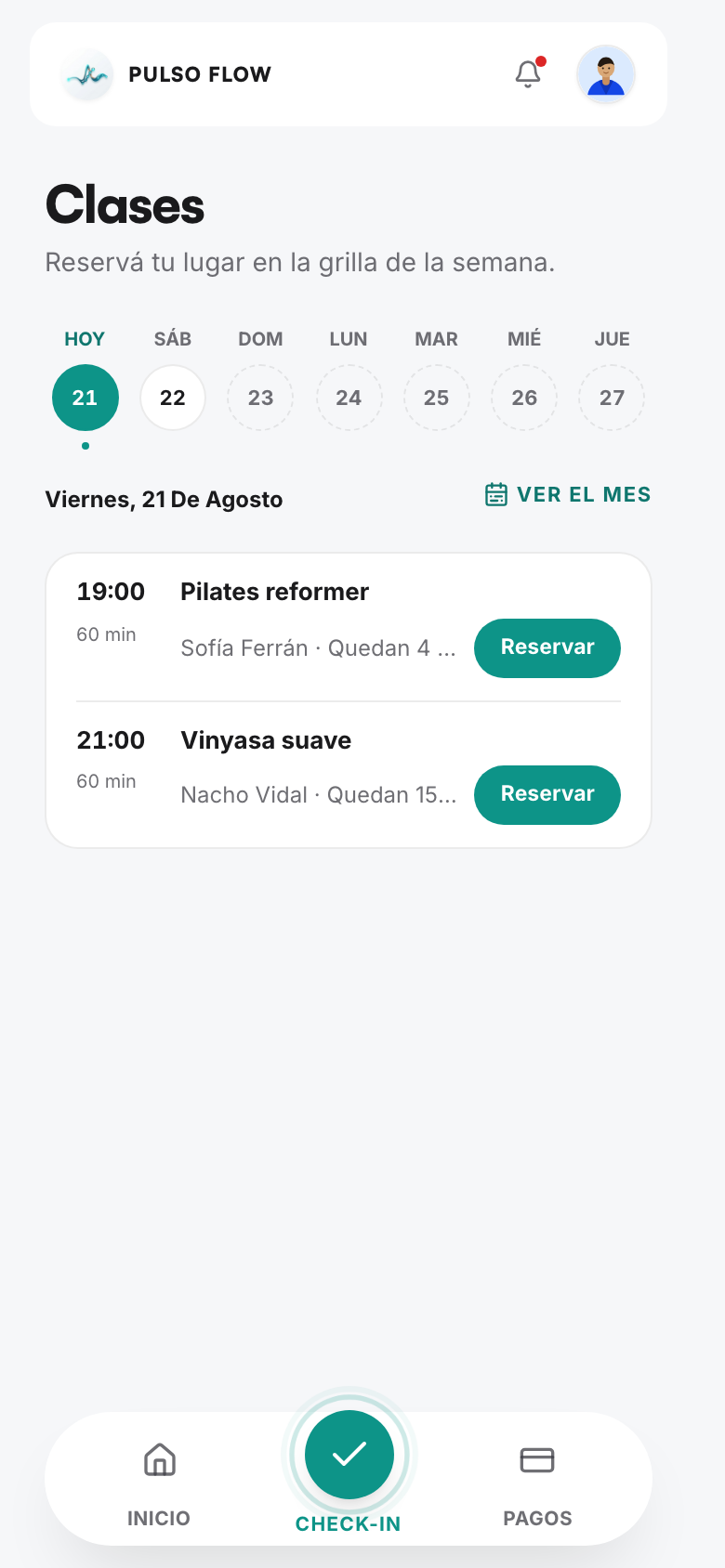
The member opens Classes and sees their week's schedule (they can expand to the month to navigate). For each class they see the time, the instructor, how many spots are left or whether it's full, and they book with one tap. Their bookings sit under My bookings, and they can cancel while the cancellation window is open.
Their home screen also shows their next class and how many they have booked this week. On the calendar, days are marked according to whether there are classes, they have a booking, or they attended.
Weekly credits
A plan can cap how many sessions per week it includes (see Plans and memberships). If it has that cap:
- The member sees their credits and how many are left. They renew on Mondays.
- Once spent, they can't book any more classes that week.
- A day already used isn't charged twice: if they booked a class and also check in at the door that same day, it counts as one session.
- A booked class they didn't attend and didn't cancel still uses up the credit.
If the plan has no cap, booking is unrestricted and no credits are shown.
The cap is enforced at the door too: with the week's credits spent, check-in is blocked (see Attendance and check-in).
Notices
The member gets a reminder for their booked class and a notice if the class is cancelled. See Member communication.