
Member management
Your members are the heart of your studio. Each one has a profile with their personal details and a membership that defines which plan they have and how long they're up to date. From here you manage who they are, add them, and keep them organized.
How to add members
- One at a time: you enter the person's details (name, contact, date of birth, location) and they're created as a member. Initially their membership stays pending until a plan is assigned and a payment is recorded.
- By invitation: you send an email invitation and the person creates their own access. The owner can invite members, staff and even another owner; staff can invite members.
- They sign up themselves (self-service): the person searches for your studio by name from the sign-up screen and registers on their own. They land as a pending member, ready for you to assign a plan and charge.
- Bulk import: if you already have your base in a spreadsheet, you can import it all at once. The system reads each row (member details, plan, dates, status) and creates the members. Rows with problems (duplicate email, missing data, plan or location that doesn't exist) are skipped and left in a report for you to fix and upload again. Re-importing is safe: duplicates are simply skipped.
- Export: you can download your member roster (with details, status, last payment, attendance count, etc.). The export respects whatever filters you have on and is compatible with the import, so you can download, edit and upload again.
Member details
Each member has a name, contact, date of birth and sex, plus the location they belong to. All of those fields are edited in the same member data form, and both the owner and staff can change them. The date of birth enables the automatic birthday greeting (see Member communication). Saving updates the roster on its own — no reload needed.
If you have several locations, you can move a member to another location without redoing their profile: their membership, history and payments follow them.
How they found you
When they sign up (or when you invite them), you can record how they got to the studio: Instagram, Facebook, Google, a friend, or other (with a free-form text up to 100 characters). Answering is optional; those who don't answer are recorded as "not specified".
From that, the system builds an acquisition summary on the members screen: what percentage came through each channel, and by which route each one was registered — self-service (they signed up themselves), staff (your team entered them) or migration (they came from the import). It tells you which channel is actually bringing you people.
Searching and filtering the roster
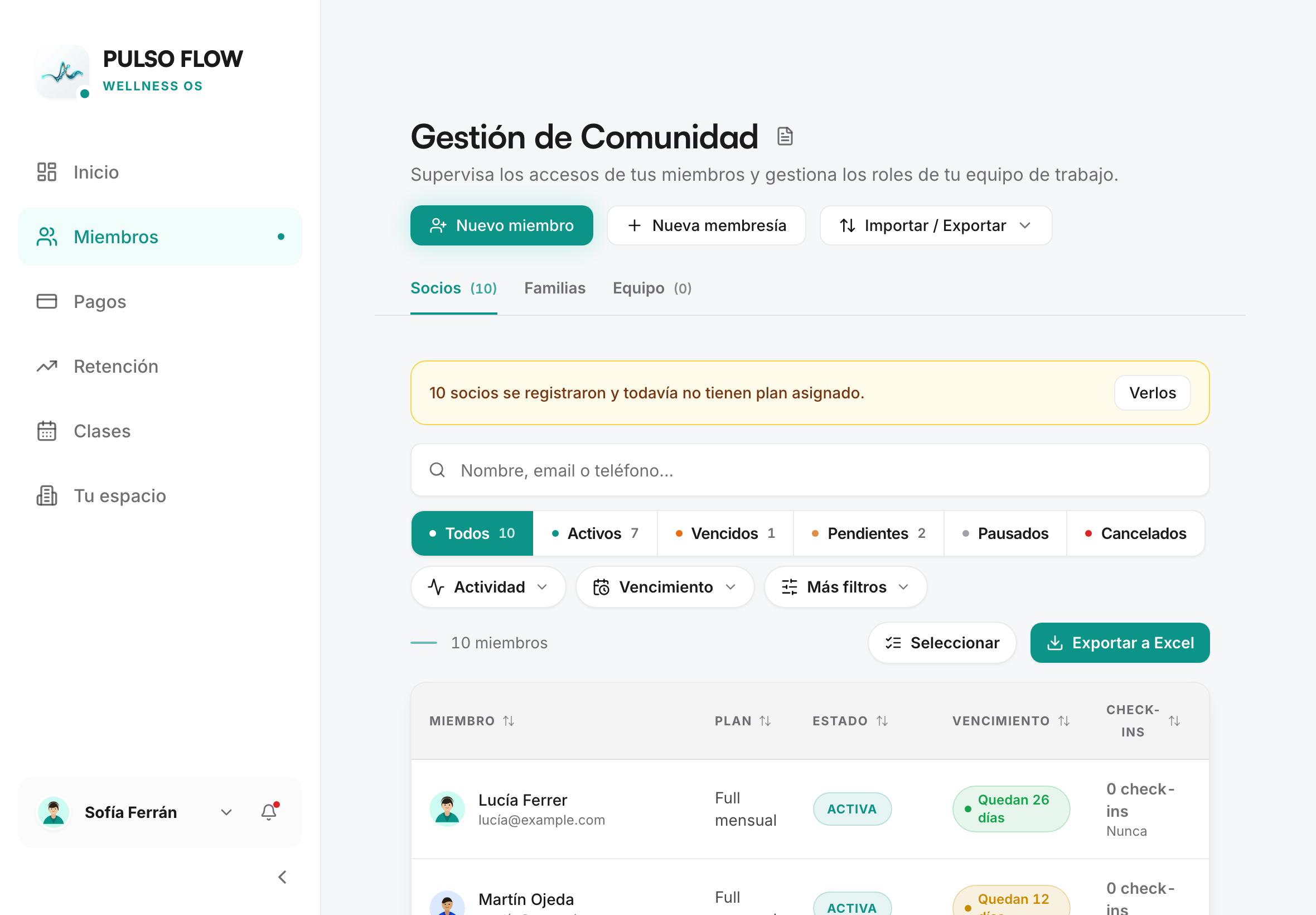
On the member list you can search by name and combine filters:
- Status: active, expired, pending, paused, cancelled or all.
- Activity: checked in within the last 7 or 30 days, no activity for 30+ or 60+ days, or never checked in.
- Expiration: expiring in 7, 15 or 30 days, or already expired.
- Location and how they found you.
In the table, each member shows their plan, status, expiry, check-ins (total and last visit) and age; every column sorts the list. Select lets you tick several members to remove them at once, and a banner at the top flags the members who signed up on their own and still have no plan assigned.
Filtering is resolved server-side, so it works over the whole roster (not just what's on screen) and the export matches what's filtered.
The member profile
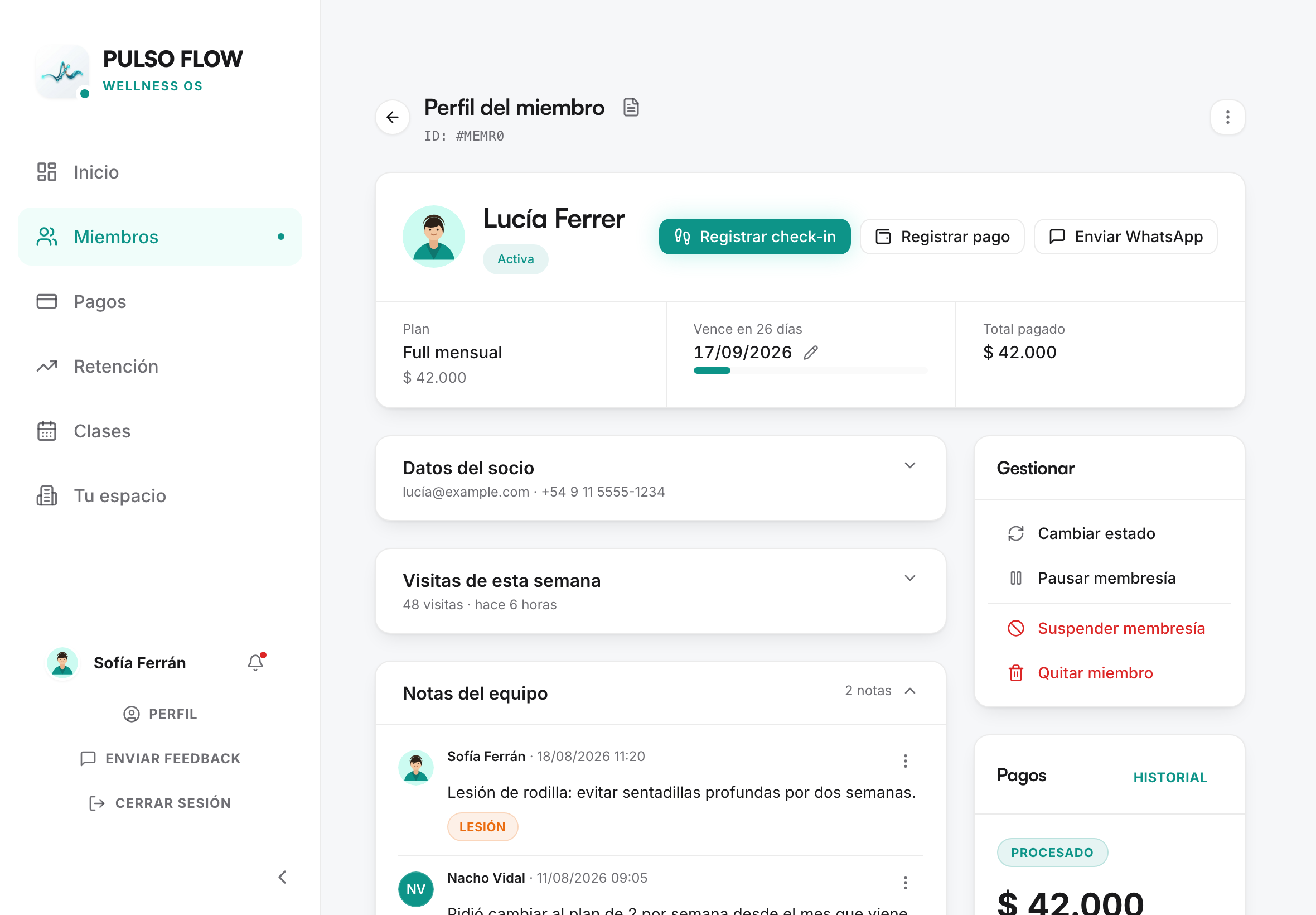
Opening a member shows their status and plan, plus:
- Recorded visits and weekly streak.
- Member value: how much they've paid in total since joining.
- Payment history and attendance history (with the activity type of each one).
- Direct actions: record a payment, check them in, edit their details, change the membership status, call them or message them on WhatsApp (see Member communication).
Team notes
Each member's profile has a space for internal notes: the team writes them and the whole team reads them. The member doesn't see them.
They're for what doesn't fit in a field: "right shoulder pain", "deload week", "asked for the invoice under the company name". Each note can carry a tag — Injury, Follow-up, Payment, Administrative or Incident — and you can filter by it.
- Up to 1000 characters per note.
- Each note is signed by whoever wrote it, with the date (and a mark if it was edited later).
- Editing: only the author. Deleting: the author or the owner.
Pending review
Members brought in by import are flagged as "pending review". It's a reminder that it's worth reviewing and completing their details (contact, dates, plan) before considering them ready. When you confirm the profile is correct, you remove that flag and the member is reconciled.
This is useful especially when migrating from another system: you bring everything in quickly and then review member by member.
Each member's status
A member's status reflects their membership status. The main ones:
- Active: up to date and able to check in and book classes.
- Pending: payment still to be confirmed / plan to be assigned.
- Paused: their membership is frozen for a while (see Plans and memberships).
- Expired: their paid period has ended.
- Cancelled: cancelled.
The details of how you move from one status to another are in Plans and memberships.
Activity tracking: inactive members and weekly streak
The system helps you spot members who are cooling off:
- Inactivity notice: once a week (Monday morning) the system reviews who is active but hasn't recorded an entry for 7 days or more, and sends them a notice to re-engage them. Each member gets that notice only once per membership, so it isn't repeated week after week.
- Weekly streak: the system counts the consecutive weeks in which the member attended at least once. The member sees their streak in the app ("On a streak — 3 weeks") and you see it on their profile. It's a tracking metric only: it applies no automatic penalties.
Families
If you handle plans for groups of people, the Members screen has a Families tab: there you see each group with its payer, the seats used and left, and the state of the cycle.
- Create family opens its own page, where you enter the payer and every member in one go (before, you created the group and then added each person in separate dialogs). Anyone who can't get in is flagged with the reason before you save.
- You can also add someone to an existing family while you charge them, without touching their membership or their dates. That's how you group families where each person pays their own way.
How a family plan is defined is in Plans and memberships; how it's billed (the whole plan or each person's share) is in Payments and billing.